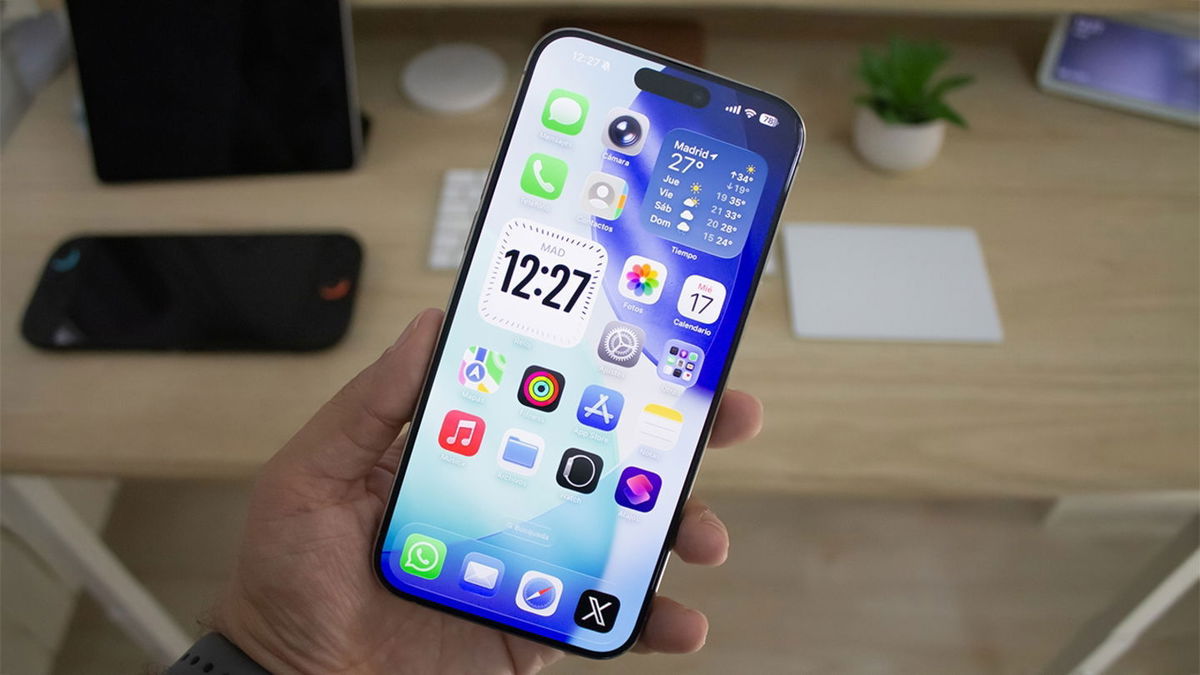
iOS 26 is a very complete and flashy operating system that has many hidden settings that most users don’t know about. I have been using iOS 26 for many months and all this time I’ve changed some of these settings that go unnoticed and I think most users should know them. You will probably change many of them too.
Change the transparency of liquid glass on the clock lock screen
Liquid Glass is a design language that I really like it, but Apple has been tweaking and improving it with passing updates. And there’s one of those tweaks that I’ve used to make it perfect for the wallpapers I use all the time.
While you can completely remove the liquid glass transparency effect, I wouldn’t turn it on. But by editing your iPhone lock screen, you can adjust the degree of transparency of the clock and this is what I recommend you adjust as it can vary greatly depending on the wallpaper you choose.
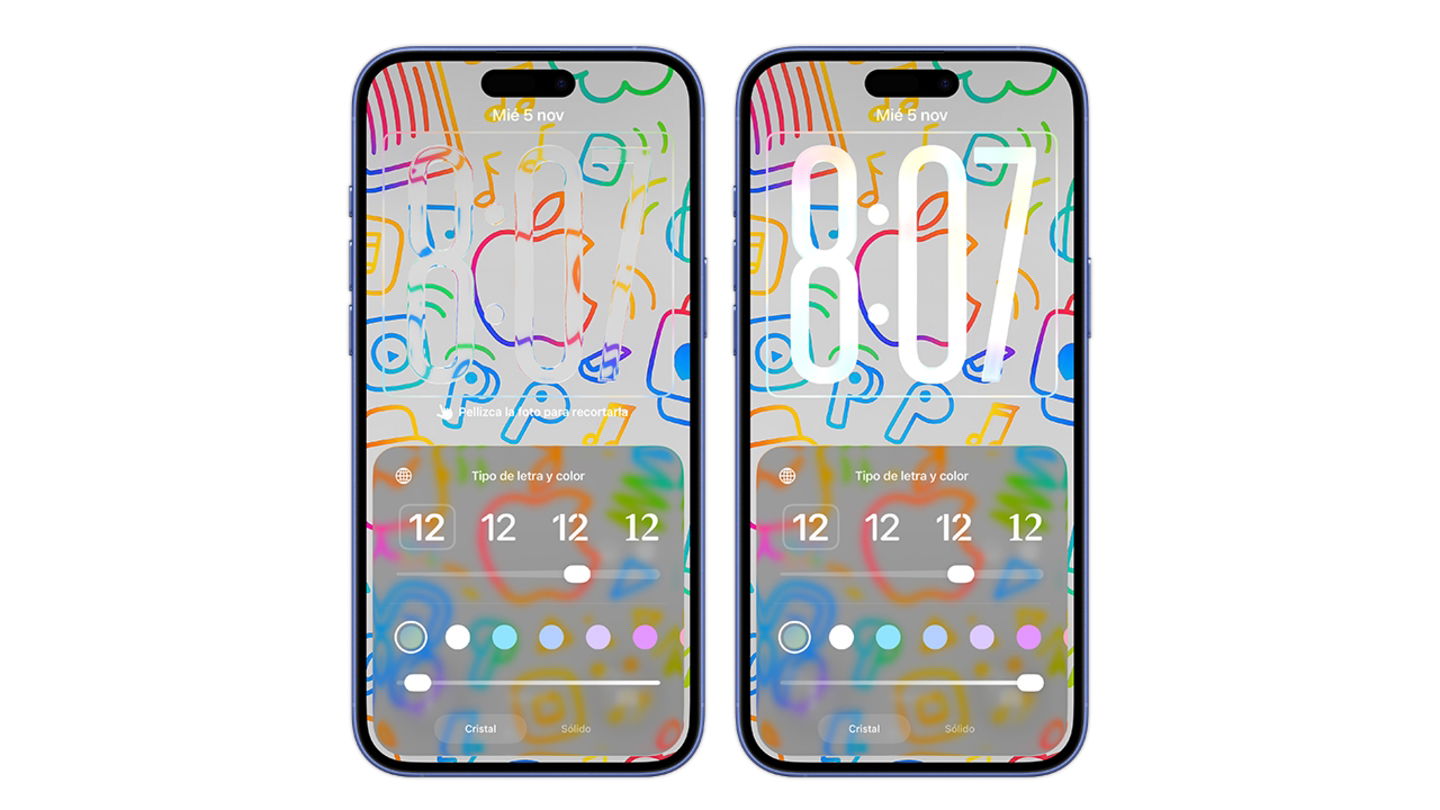
Starting with iOS 26.2, you can adjust the transparency of Liquid Glass to your liking on the lock screen
Activate adaptive consumption mode
This special mode of iOS 26 makes some adjustments to the operating system extend iPhone battery life when we overuse. And this is a setting that I find necessary to activate.
entering Settings > Battery > Power consumption and activate the adaptive consumption switch. So, when the iPhone detects high battery consumption, it will automatically adjust performance: reduce brightness, slow down certain processes, and can turn on low power mode when the charge reaches 20%.
Use the 3D effect on your wallpaper
iOS 26 has a very interesting effect that transforms our photos by offering a 3D effect which looks great as a wallpaper. If you use wallpaper, Click on the button that will appear next to the 3 dotsa hexagon that mimics wallpaper.
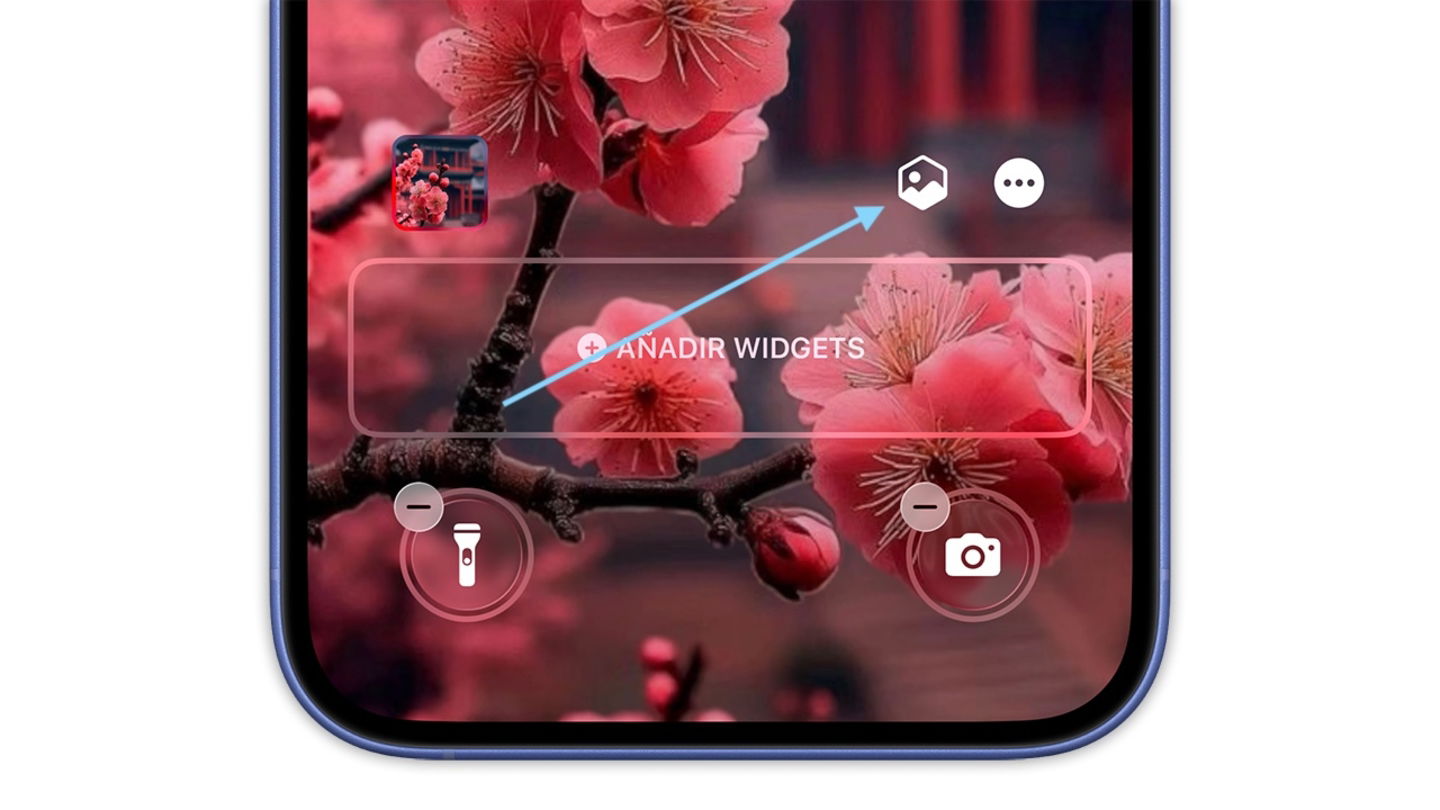
Clicking this button will give your wallpaper a cool 3D effect
Access the camera on the lock screen
A feature I hated, I accidentally activated the camera many times by accidentally sliding the screen to the left. Fortunately, we can now disable this feature by typing Settings > Camera > Lock screen. The camera will no longer activate randomly.
Activate the unknown call filter
iOS 26 feature I love. The Spam calls are greatly reduced since I activated this feature. You can skip unknown numbers entirely or put them on hold until they identify themselves. This is one of the best features of iOS 26 and one of the settings you should activate no matter what.
You can activate it with Settings > Phone choosing between “Do nothing”, “Ask a reason” or “Silence”. Here’s what each offers:
- do nothing– Your device will ring when unknown numbers call you and missed calls will be displayed in Recents.
- Ask the reason for the call– If someone calls you from a number that isn’t in your contacts, you’ll be asked for more information before calling your iPhone. You will see a transcript of the caller’s answers and decide whether to answer the call or not.
- Mute the sound: Your iPhone won’t ring if you don’t have the number you’re calling from saved. The call will be sent to voicemail and displayed in the recent list.
Remove vibration during calls
iOS 26 causes the iPhone to vibrate when hanging up or answering calls, which may annoy many users. iOS 26.1 added a setting to easily disable this feature, which I activated immediately, you can do this with Settings > Applications > Phone > Vibrate
Add widgets to CarPlay
Another setting that I think is important to improve the use of the iPhone in the car. In iOS 26, CarPlay introduces many improvements, and one of them allows us to activate widgets on the screen. You can do it with Settings > General > CarPlay > (Select your vehicle) > Widgets. You can add multiple widgets and depending on the car screen size you will have multiple groups.
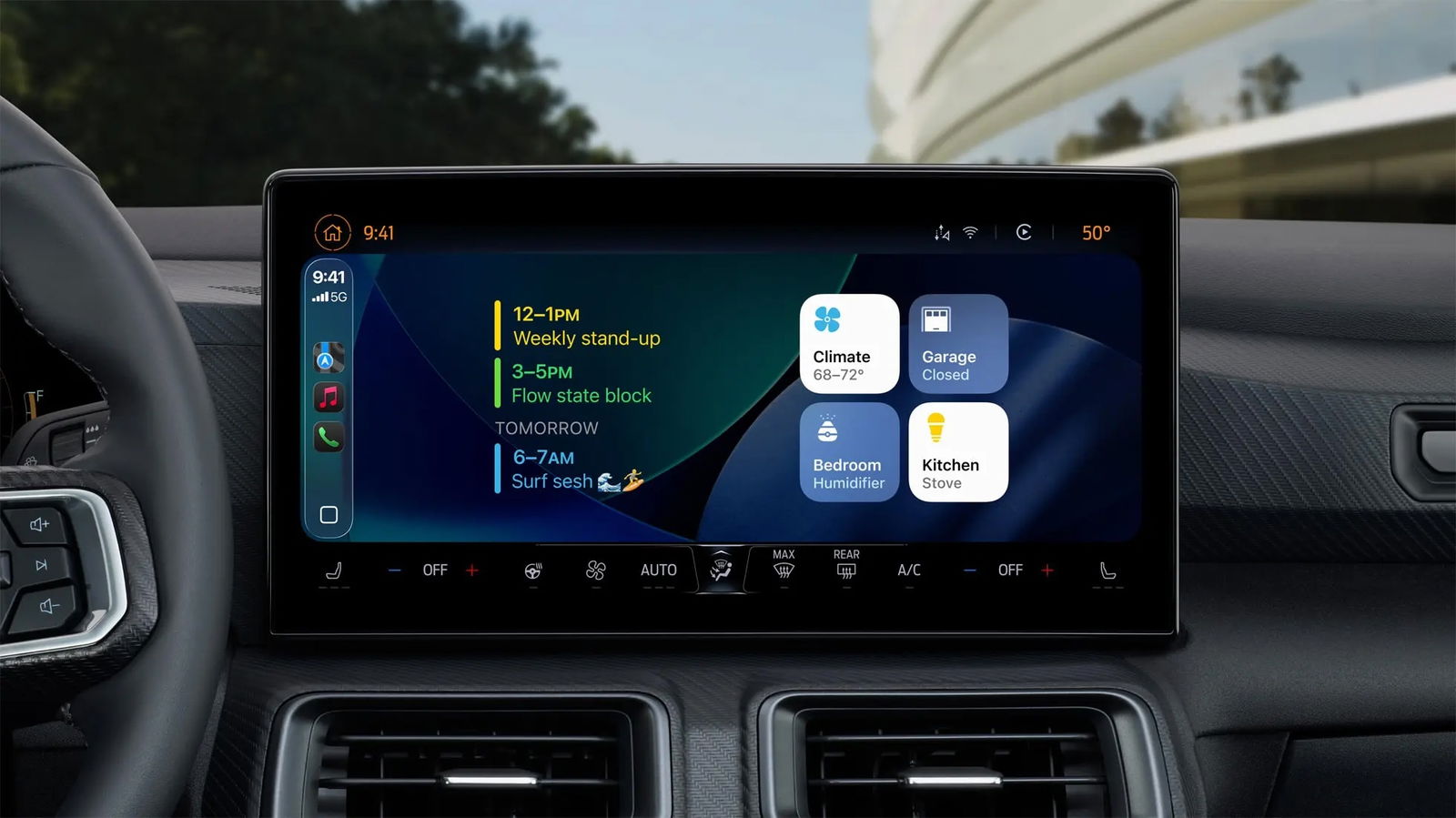
Widgets are the best thing to happen to CarPlay in a while
Turn on AirPods sleep detection
AirPods in iOS 26 have a lot of new features, and one of them makes them AirPods automatically turn off when they detect that you’re sleeping. Sign in with AirPods connected Settings > AirPods and turn on Sleep Pause..
Everyone These settings are available in iOS 26 and I recommend that you enable them as soon as you get a chance. They have been very useful for me, greatly improving my experience with the iPhone, from battery life to screen customization and call management, making daily use much more comfortable and efficient.
You can follow iPadized on Facebook, WhatsApp, Twitter (X) or check out our Telegram channel to keep up with the latest tech news.