

The arrival of Android 17 will bring one of the most awaited features by users: a universal clipboard capable of synchronizing copied content between mobile phones and computers. This feature, which until now has been one of Apple’s great differentiators, promises to transform the performance and user experience on Android devices by eliminating the need for third-party apps.
Android is getting ready to include a tool that lets you copy text on a device like a Pixel phone and automatically paste it on a connected computer. According to details released by journalist Mishal Rahman, the feature has an internal name “Universal Clipboard for Android”although it has not yet been confirmed that this will be the title at its official launch.
Currently, the Android clipboard stands out for its larger storage capacity compared to iOS, but synchronization between different devices was an Apple exclusive. Google aims to close this gap with a system that uses Play services and a new Continuity module for transferring copied text between Android phones and computers.
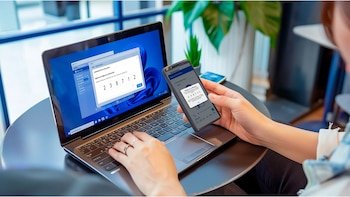
The process will work in both directions, allowing information to be transferred both from mobile phone to PC and from PC to mobile phone, greatly simplifying routine tasks and workflow between platforms.
The intended mechanism of the Universal Clipboard is simple. When copying text to your device, The Pixel system will detect changes to the clipboard and send them to Google Play services. In the future, a module called Continuity will be responsible for transferring this text to a connected device, be it a computer or, potentially in the future, a tablet.
It should be noted that in the first phase the function will be limited to text only, unlike the Apple ecosystem, where files and images can also be transferred.
In addition to syncing, Android has enhanced aspects confidentiality in security to the clipboard in recent versions. For example, with Android 13, there are mechanisms to delete the contents of the clipboard an hour after it is copied and to notify the user when an app accesses stored information.
These measures take on new importance given the imminent mass of the service, as sensitive data such as passwords or banking information is often copied.
If you are using windowsthe easiest way to transfer photos and videos from your iPhone is to connect both devices using a USB cable. After unlocking iPhone and grant the necessary permissions, it will appear as an additional drive in “This PC”.
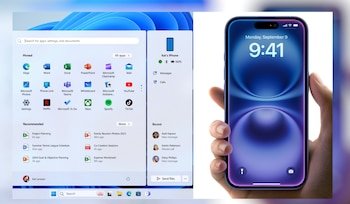
Inside this drive is the DCIM folder, which contains subfolders organized by date and file type. There you can copy the files you want and paste them to the right place on your computer.
Another practical option is to use the Windows 11 Photos app. With your iPhone connected, open the app and tap Import. This feature allows you to select individual images or transfer your entire gallery in one step, perfect for creating complete backups of your digital memories.
If you prefer cloud sync, you can use iCloud to access your photos. With the free 5GB version or with an iCloud+ subscription, you just need to go to iCloud.com from a browser on your PC, sign in, select the Photos section, and upload the files to your computer. This mode is especially handy if you don’t have cable or if you’re managing files from multiple devices.