If you use Google, which is very likely, you most likely have an account (at least) registered with Gmail, and Google’s email service is a mandatory requirement to use the browser and enjoy all its services and benefits.
We treat it as 2×1 as it allows us to access tools like Drive, Google Maps, or Google Photos among other things in a more personalized way, at the same time we have an email account with all that that entails. But Google does not only to make your life easier, but also They’re also interested in having you use their entire ecosystem.
For many years, it was to have our data and tastes, since They may sell this information to advertisers for the purpose of sending us targeted advertising that attracts us. For example, Google discovers that you like CrossFit, and you start seeing ads for gyms, sportswear, and similar things related to this hobby.
But now, with the rise of artificial intelligence, so is the company is interested in training this technology with data from real people so that AI understands and knows how it can help us. Again, this sounds great, but there is clearly a very important aspect that needs to be taken into account, and that is to keep our accounts wide open to AI. This poses a risk to our privacy.
Let Gemini have access to your email and can help you in a variety of ways, whether it’s summarizing messages, finding information for you, or performing a personalized search so you don’t have to. But these means conflict with aspects such as end-to-end email encryption, for example.
How to prevent AI from accessing all your emails in Gmail
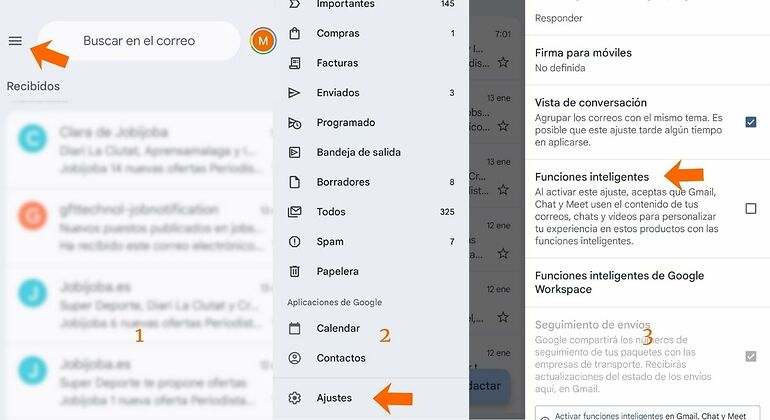
Fortunately, and because Google knows that this option goes against the privacy principles that users strive for, there is an easy way to stop access to artificial intelligence by changing this setting on your mobile phone. works on both Android and iPhone:
- Open the Gmail app.
- Click on the three horizontal bars at the top right
- And a Settings.
- Select the account you want to remove AI access from (you can do this on all of them).
- Scroll down to the option Smart features and deactivate it.